
 Circle Text
 Wave Text
 Arc Text
 Spiral Text
 Heart Text
 Text on Path
 Add Curved Text to Photos
 Badge Logo Maker
 Balloon Text Generator
Balloon Text
Generator
Create puffy 3D balloon lettering with a live preview. Adjust the text, color, depth and camera angle, then place it in your design.
No loginNo subscriptionNo watermark
- Inflated
- Adjust
- PNG
See the finished effect
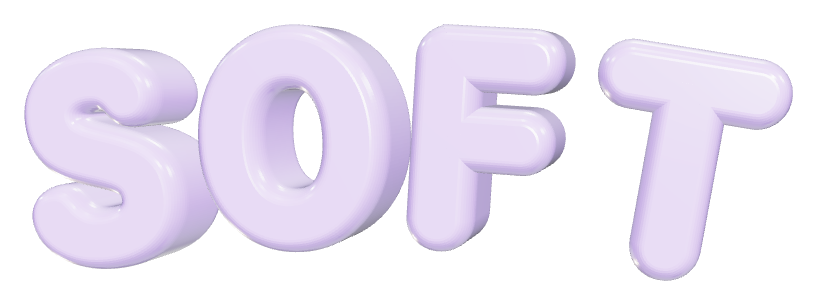
Your words, your design
Balloon text gives a short word the rounded volume and soft highlights of inflated lettering. The editor builds the effect as a real 3D preview, so you can inspect the lettering and adjust the view before adding it to the canvas. It suits a name, an age, a party headline or a playful brand graphic. You type the wording directly; the effect does not require an AI prompt or an image-generation request.
How it works
Your words, your design
Style
Open the balloon style in the 3D text studio.
Adjust
Type a short word and adjust its color, depth and angle.
Export
Add it to the canvas and export your finished design.
No loginNo subscriptionNo watermark
What you can customize
Preview the volume live
Check the rounded letterforms and lighting in the 3D studio before placing the result in a composition.
Adjust the finish and view
Change the color, depth, spacing and camera angle to find a balance between volume and readability.
Return to the wording later
Reopen a balloon text layer to update its text or settings, then render the revised version into the same design.
Balloon Text Generator · Practical guide
Make your lettering work in the real world.
Use short words for the strongest effect
Names, ages, short greetings and compact headlines give each inflated letter room to read. Birthday graphics, invitation covers, social posts and playful product announcements are natural starting points. Try one or two words first; a long sentence makes the individual letters smaller and the reflections harder to appreciate. The current style is smooth inflated lettering, not a promise of foil wrinkles, balloon strings or physically manufactured balloon templates.
Balance depth, angle and letter spacing
Begin with a mild camera angle so the front of every letter stays visible. More depth can emphasize the 3D form, but an extreme side view may hide a narrow letter behind its neighbor. Adjust spacing before increasing the angle, and choose a color that remains distinct from the background. Use the live preview to judge the entire word rather than tuning one isolated letter.
Build a finished design around the lettering
Add the rendered result to the canvas, then move, rotate or resize it like another image layer. Combine it with a photo, a short supporting line or other editable text. To change the balloon wording, use the layer edit action or double-click the 3D layer to reopen its settings. The studio settings are retained, but the placed artwork itself is a rendered image rather than a live 3D object.
Understand characters, transparency and export
The current 3D fonts support Latin lettering and supported numbers or punctuation. Unsupported characters are identified in the studio; do not assume every script or emoji can be rendered. PNG is useful for placing the finished lettering into another graphic. An SVG export embeds the rendered balloon layer as a bitmap instead of converting its volume into editable vector paths. GIF export of an animated composition does not turn a static balloon layer into a rotating 3D video.
Frequently Asked Questions
You can reopen the 3D layer to change its words and settings. Its rendered image is embedded as a bitmap in SVG. The current 3D fonts support Latin characters; unsupported characters are flagged.
No. Enter the word in the 3D studio and adjust the available controls. The browser renders the preview directly; the balloon workflow does not call an AI image generator.
Yes. Reopen the 3D layer with its edit action or a double-click. Change the wording or retained settings, then apply the updated rendering to the design.
The 3D style uses a particular font with a limited glyph set. Use supported Latin letters, numbers and punctuation. The warning helps prevent exporting a word with missing letters.
The placed balloon layer is a rendered image. You can export supported composition animation as GIF, but there is no MP4 export or automatic conversion of that image into a rotating 3D video.
No loginNo subscriptionNo watermark