
 Circle Text
 Wave Text
 Arc Text
 Spiral Text
 Heart Text
 Text on Path
 Add Curved Text to Photos
 Badge Logo Maker
 Balloon Text Generator
Add Curved Text
to Photos
Upload a photo and draw a flowing line of text over it. Refine the curve, change fonts and colors, and download the finished composition.
No loginNo subscriptionNo watermark
- Edit curve
- PNG
- SVG
See the finished effect
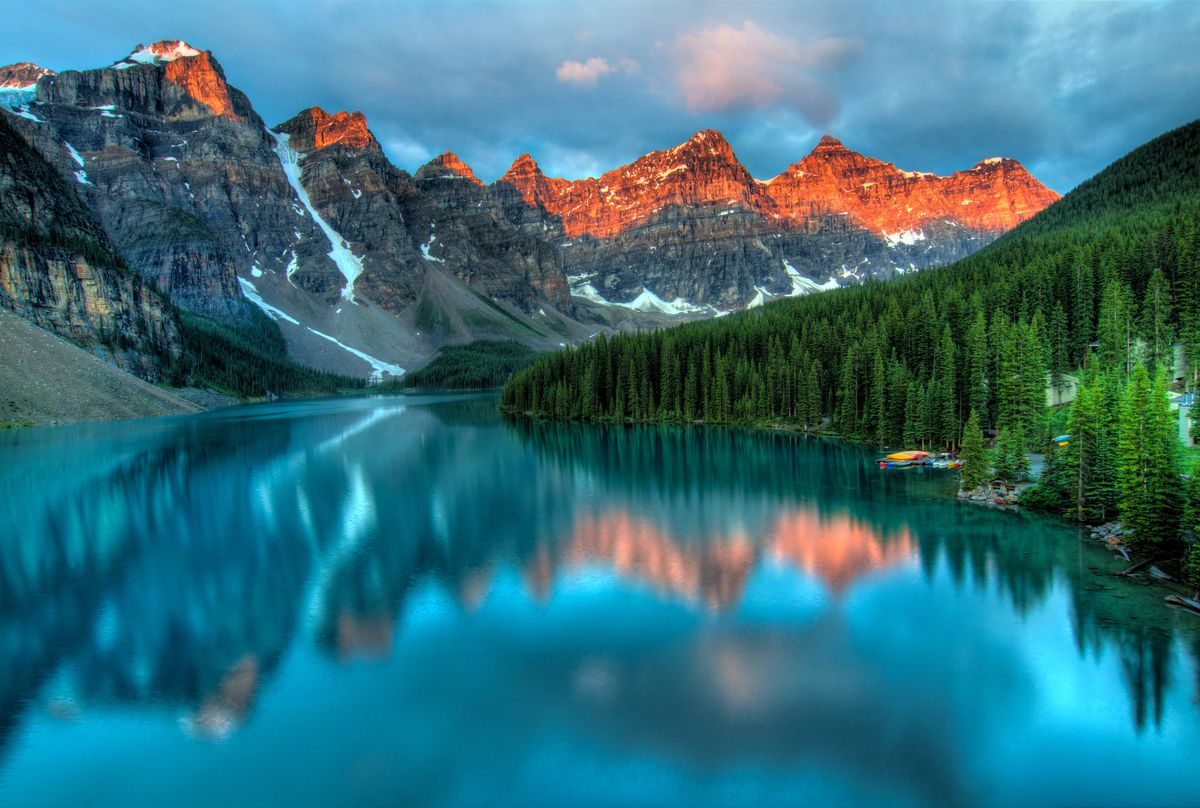
Your words, your design
Curved text on a photo follows the composition of the image instead of sitting in a straight caption box. Use an arc above a portrait, a flowing line across a landscape or a short label beside a product. Upload your own image, draw the route for your words and keep the lettering editable as a separate layer. You can return to individual curve points without deleting the text or starting again.
How it works
Your words, your design
Upload Image
Upload a photo from your device.
Text
Type your words and draw their path over the image.
Export
Refine individual curve points and export your composition.
No loginNo subscriptionNo watermark
What you can customize
Follow the picture
Draw a custom route around the important parts of your photo rather than forcing every caption onto a preset arc.
Refine without redrawing
Move curve nodes, change the wording and adjust the font or spacing while keeping the rest of the composition.
Choose what to export
Save the complete photo composition, or choose a text-only export when you need the lettering for another design.
Add Curved Text to Photos · Practical guide
Make your lettering work in the real world.
Portraits, landscapes and product images
For a portrait, place a short arc in the open space above the head or around a shoulder, keeping the face readable. A landscape can carry a wider, gentler curve that echoes the horizon. For a product image, use a compact phrase beside the item and leave room around its edges. Curved lettering remains a foreground layer: it does not automatically pass behind people or objects.
Draw first, then refine the details
After uploading, enter your words and drag across the photo to draw their route. Freehand strokes are smoothed during drawing, and the same processed route is kept when you release. Select the lettering and use the small curve-edit icon above it to move nearby points. Use the arrow keys for small adjustments and Shift with an arrow for a larger step. Undo and redo let you compare changes.
Keep curved captions easy to read
Start with one short phrase and a broad curve. Tight bends can make neighboring letters crowd together, especially at a large font size. Open the curve, reduce the size or adjust letter spacing before adding more words. Choose a color that contrasts with the area behind the text. A restrained shadow can help on a busy photo, but avoid placing the entire message across faces or detailed textures.
Export the composition or just the lettering
PNG is the straightforward choice for a finished photo with curved text. Select the text-only export range if you need lettering without the photo for another layout. SVG preserves supported text and geometry while embedding the photograph as a bitmap; it does not turn the photo into vector artwork. Uploaded photo drafts stay in this browser, so keep an exported copy if you will move to another device.
Frequently Asked Questions
The editor layers curved text over your image. It does not remove backgrounds or retouch the photo. PNG exports the composition; SVG embeds the photo as a bitmap.
The upload entry accepts PNG, JPEG, WebP and GIF. Large images are fitted to a canvas with a maximum side of 4000 pixels. Start with a clear source photo because enlarging a low resolution image cannot restore missing detail.
Yes. Select the text, click the curve-edit icon above it and drag a node. You can change the path while preserving the wording and style, and undo the adjustment if you prefer the previous version.
Yes. Choose the text-only range in the export menu. Use PNG for lettering you want to place over another image; choose the full canvas range to keep the original photo composition.
No AI generation is required. Your selected file is used in the browser and stored in a local draft. Drafts are local to this browser, rather than an account that synchronizes between devices.
No loginNo subscriptionNo watermark